Your cart is empty.
Keep shopping

Teach on Udemy
Turn what you know into an opportunity and reach millions around the world.
Learn MoreUltimate System Administrator Course
Ultimate System Administrator Course
Master Windows, Linux, Servers, Networking, Scripting, and More – Everything You Need to Become a Pro Sysadmin!
Bestseller
Role Play
Created byDan Mill
Last updated 7/2026
English
English [Auto],
What you'll learn
- Install, configure, and manage Windows Server and Linux systems
- Manage users, groups, and permissions across Windows and Linux platforms
- Deploy and manage core server roles including Active Directory, DNS, DHCP, file services, and Remote Desktop Services
- Administer Microsoft 365 and Azure including user management, Exchange Online, Teams, and cloud-based infrastructure
- Write PowerShell, Bash, and Python scripts to automate repetitive administrative tasks and save hours of manual work
- Deploy and manage virtual machines using Hyper-V and VMware ESXi in virtualised server environments
- Design and implement backup strategies and disaster recovery plans
- Harden systems and apply security practices across Windows and Linux to reduce risk and protect infrastructure
- Use monitoring tools to maintain visibility across infrastructure and troubleshoot issues with a structured approach
- Use AI tools including ChatGPT, Claude, and Copilot to generate scripts, diagnose issues, and work more efficiently
- Apply Group Policy to enforce security settings and manage configurations across endpoints centrally
Explore related topics
Coding Exercises
This course includes our updated coding exercises so you can practice your skills as you learn.
See a demo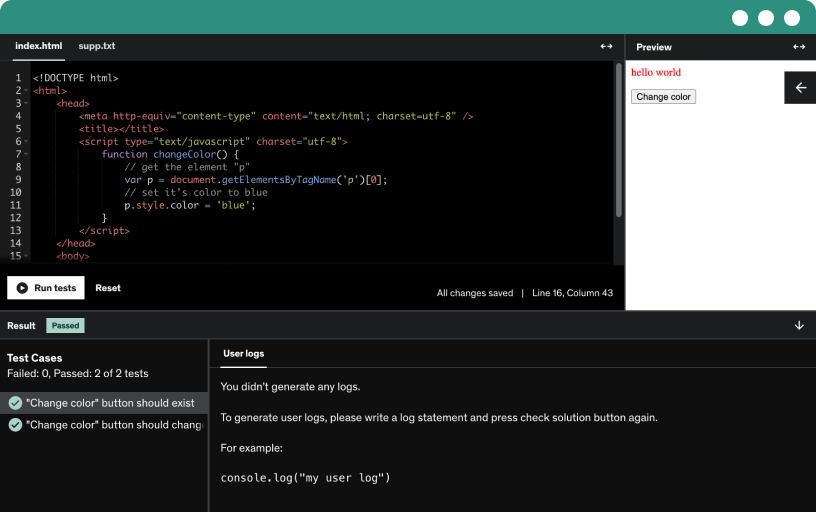
Course content
38 sections • 740 lectures • 57h 12m total length
- Introduction to the Ultimate System Administrator Course2:16
Explore the core responsibilities of modern system administration across Windows and Linux, backups, disaster recovery, scripting, monitoring, and security, all through practical hands-on labs.
- What is a System Administrator Role?7:52
Master system administration through hands-on labs and real-world scenarios, covering Linux and Windows environments, networking basics, backups, cybersecurity, and troubleshooting to ensure security and business continuity.
- Course Content1:54
Share an honest early review on Udemy to capture first impressions, assess clarity, and show content matches your expectations; your feedback helps others choose the course and guides the instructor.
- Using the Udemy AI Assistant1:40
Explore how to use the Udemy AI assistant to get quick, detailed answers via the chat interface, plus trusted help from the Q&A section for the ultimate system administrator course.
- What is a Homelab?1:09
Explore a home lab, a personal non-production environment where you can set up experiments with IT systems, software, and networks. Experiment with virtual machines, configure network devices, test new technologies, and practice troubleshooting in a safe, customizable space that supports hands-on learning, real-world IT skills, and certifications.
- Live Demo: My Homelab Low-Cost "Server"4:34
Build a low-cost home lab server using salvaged and cheap hardware, run 4–5 virtual machines with proxmox, esxi, or hyper-v, and gain hands-on, practical experience.
- Virtualization Platforms – Let’s Talk About Your Options5:09
Explore virtualization platforms that let you run virtual computers on your physical machine, enabling Windows, Linux, or multiple OS for safe testing, experimenting, and learning in a virtual lab.
- What is Windows Server 2025?8:45
Explore Windows Server 2025, the next evolution in Microsoft server operating systems, delivering enhanced security, advanced threat detection, improved performance, centralized management, and seamless cloud or on premise deployment.
- What’s New in Windows Server 20254:02
Upgrade directly to Windows Server 2025 from 2012 R2 and later. Use hot patching and laps to manage admin passwords via Active Directory and adopt Azure Arc for hybrid management.
- System Requirements2:14
Discover the minimum hardware requirements for Windows Server, including cpu, memory, storage, and network specs, and learn how to tailor them for VMware lab setups.
- Downloading Windows Server 2025 Evaluation ISO File For Your Virtual Machine2:00
- Setting Up Your Lab Environment4:05
Set up a safe, isolated lab by configuring a Windows Server 2025 virtual machine in VMware Workstation or other virtualization platforms, with an ISO, allocated resources, and snapshots.
- Installation of Windows Server 20258:24
Install Windows Server 2025 in a lab VM on VMware ESX or Hyper-V by following the standard ISO installation, choosing English US desktop experience, and creating a secure administrator password.
- Lab: First Time Setup and Basic Configuration10:00
Perform the first time setup of a Windows Server 2025 instance, configuring time zone, static IPv4, and DNS. Enable remote desktop and management via sconfig and server manager.
- Course Activities2:03
Actively participate in assignments, quizzes, and role plays to apply what you learn and deepen retention. Engage in hands-on, safe practice that builds decision-making, problem-solving, and confidence through real-world simulations.
- Assignment: Describe Your Windows Server Lab Environment
- Understanding Roles vs Features7:20
Understand server roles as the main duties of a Windows Server, with examples like Active Directory, DHCP, DNS, file services, and Hyper-V, while features provide supporting tools such as BitLocker.
- Lab: Install and Configure DNS & Active Directory Domain Services17:40
Install and configure DNS and Active Directory Domain Services to create a functional domain controller and new forest. Validate domain operations with nslookup, static IP, and DNS forwarders.
- Lab: Create DNS Records8:17
Learn how to create A records, CNAME records, MX records, and PTR records in Windows DNS, perform forward and reverse lookups, and understand their role in Active Directory networks.
- Lab: Creating and Managing Users, Groups, and OUs11:23
Learn to create organizational units, user accounts, and security groups in Active Directory, assign users to groups, and apply access control and group policy using a Windows Server domain controller.
- Lab: Join Second Server to Domain5:01
Join a second Windows Server to an existing Active Directory domain. Verify domain membership via Server Manager and DNS.
- Group Policy Basics7:18
Apply group policy to centrally manage operating systems, applications, and end-user settings across an Active Directory domain with Group Policy Objects for consistent security settings.
- What are FSMO Roles? (Flexible Single Master Operations)11:20
Explore the five FSMO roles: schema master, domain naming master, RID master, PDC emulator, and infrastructure master, on forest and domain levels to prevent conflicts in Active Directory.
- Lab: FSMO Roles in Action2:01
Run the netdom query fsmo from a domain joined machine to identify which domain controller holds each fsmo role, and document the output to prevent a single point of failure.
- Lab: Install and Configure DHCP Server7:38
Learn to install and configure a DHCP server, authorize it in Active Directory, create an IPv4 scope, and manage IP allocations, exclusions, and reservations for automatic network configuration.
- Lab: Install the Web Server (IIS) Role5:53
Install and configure the Windows Server web server IIS to host websites, web apps, and services, using Server Manager and IIS Manager.
- Lab: Install and Configure the Remote Desktop Services14:01
Install and configure Remote Desktop Services on Windows Server. Set up a session-based deployment, enable Remote Desktop Web Access and Gateway, manage licensing, and test connectivity.
- Assignment: List 3 Server Roles and What They Do
- Understanding Volumes, Disks, and Storage Spaces8:07
Explore how disks become volumes and how storage spaces pool multiple disks into fault-tolerant virtual disks, using GPT, NTFS, and volume types like simple, spanned, striped, and mirrored.
- Lab: Storage Spaces8:05
Create a storage pool from five ten-gig disks, enable thin provisioning, configure a parity virtual disk, and provision a usable NTFS volume for the Z drive.
- Lab: Installing and Configuring File Server Role7:34
Install the file server role, create a shared projects folder, and grant domain users access via SMB. Map the Z drive and configure NTFS permissions in Server Manager.
- Lab: Setting NTFS and Share Permissions4:01
Master NTFS permissions in Windows Server 2025 by configuring share access, disabling inheritance, and assigning rights like full control, modify, and read for users and groups.
- Role Play Scenario: Planning Storage Spaces for a New File Server
- PowerShell Essentials for Server Admins4:27
PowerShell essentials empower server admins to automate tasks, manage services and users, and gain full control over Windows Server environments.
- Lab: Create and Run a Script to Automate User Creation3:03
Shows a PowerShell script that automates Active Directory user creation. Imports the AD module, prompts for user details, and applies enabled and change password at logon.
- Referencing Variables in Scripts0:51
- Tips for using PowerShell effectively6:20
Discover practical PowerShell tips to boost efficiency, from using get-help and get-command to tab completion and show command, while managing aliases and updating help.
- Visual Studio Code and Powershell5:11
Discover how Visual Studio Code empowers PowerShell scripting with syntax highlighting, intellisense, an integrated terminal, and a rich extensions ecosystem including templates.
- Lab: Windows Updates3:18
Check for and apply updates on Windows Server, pause updates when needed, and review update history, then configure automatic, manual, or download-only settings via sconfig.
- Event Viewer and Logs6:24
Master event viewer to view and filter Windows Server logs, including application, security, and system, and create custom views for critical errors, logins, and security audits, enabling proactive server diagnostics.
- Performance Monitor / Resource Monitor / Task Manager8:04
Monitor and troubleshoot Windows Server 2025 performance in real time using task manager, resource monitor, and performance monitor to identify bottlenecks and optimize CPU, memory, disk, and network usage.
- Lab: Windows Firewall4:12
Master Windows Defender Firewall with Advanced Security, manage inbound and outbound rules across domain, private, and public profiles, and create port 8080 rules to secure servers.
- Lab: Windows Virus Scan4:22
Enable Microsoft Defender Antivirus on Windows Server 2025, run quick or full scans, and keep definitions current while enabling real-time protection, tamper protection, and exclusions.
- Lab: Back Up and Restore Files10:11
Explore Windows Server backup as a tool for backing up files, volumes, system state, and bare metal recovery, compare it to third-party solutions, and practice configuring scheduled and manual backups.
- Server 2025 Monitoring, Maintenance & Updates Quiz
- How Windows Server is Used in the World10:21
Explore how Windows Server powers small businesses to large enterprises by running roles like Active Directory, file storage, DNS, and DHCP on a single physical server and via Hyper-V.
- Lab: Automate User Creation8:35
Learn to automate new user provisioning in Active Directory with a PowerShell script, copy security group memberships, and streamline onboarding for the help desk.
- Lab: Setup New Security Groups3:03
Learn how to create and manage security groups in Active Directory, apply least-privilege access, and configure SSO for apps like Dan Mill Monitoring with global vs domain local groups.
- Lab: Troubleshooting Account Lockouts7:03
Enable audit logon events with group policy to capture login and logout activity, then use Event Viewer to identify failed logons and the source of account lockouts.
- Lab: Auditing Who Has User Rights6:26
Audit who has admin rights in Active Directory, focusing on domain admins and other high privilege groups. Use PowerShell to list members and export CSV reports for compliance.
- Final Thoughts and Practice Scenarios for Self-Assessment2:06
Develop practical Windows Server 2025 mastery by building a personal IT lab, recreating labs, and solving real-world issues with virtualization such as VMware Workstation or VirtualBox.
- Role Play Scenario: Explaining Windows Server
- What is Hyper-V?2:42
Explore Hyper-V, Microsoft's virtualization platform for creating and managing virtual machines on a single host. See how Windows Server and Windows 10/11 Pro drive cost efficiency, versatility, and production environments.
- Lab: Install Hyper-V Role5:36
Install Hyper-V on Windows server, enable BIOS virtualization. Enable nested virtualization if needed, create a virtual switch, set folders for virtual disks and VMs, then reboot and use Hyper-V manager.
- Lab: Create a Virtual Machine in Hyper-V4:15
Create a Hyper-V virtual machine with the wizard, name core Linux zero two, generation one, attach switch, allocate 1 gb and 16 gb, then boot from the core Linux ISO.
- Downloading Windows 11 ISO File For Your Virtual Machine1:48
- Windows 11 Editions3:08
Explore Windows 11 editions from home to enterprise and identify the right admin fit. Pro adds group policy editor and Azure AD join; enterprise adds AppLocker and Credential Guard.
- The Drive Towards Windows 112:57
Understand why Windows 11 matters as Windows 10 reaches end of life in 2025. Learn how TPM 2.0, zero-trust security, and BitLocker boost protection, while admins leverage familiar deployment skills.
- What’s New in Windows 11 for Sysadmins?9:44
Windows 11 introduces security, management, and performance improvements for sysadmins, including enhanced threat protection, zero trust by default, TPM 2.0, and streamlined deployment with Autopilot and improved group policy.
- Build a VM in a Lab Environment4:36
Build and run Windows 11 in a VMware Workstation VM, focusing on safe, isolated lab testing, VM creation, memory and CPU allocation, TPM support, and using the Windows 11 ISO.
- Install Windows 11 Pro14:30
Shows how to install Windows 11 Pro in a VMware Workstation Pro VM, from booting the ISO to creating a local admin account and joining a domain.
- Join Windows 11 to Domain2:29
Join Windows 11 to a local active directory domain using DMT.local and the DMT\Dan.mill account; reboot to sign in with the domain account.
- What is Entra ID?2:28
Explore Microsoft Entra ID, the cloud-based identity and access management service that enables single sign-on, multifactor authentication, and conditional access for Windows 11 and Microsoft 365 apps.
- How to Join a Windows 11 Device to Microsoft Entra ID1:20
- Helping a Sales Rep Choose a Windows 11 Edition and Hardware
- Start Menu, Networking, Settings, and Control Panel11:09
Explore Windows 11 administration by mastering the start menu, from pinned apps and integrated search to customization, plus networking settings, the settings hub, and the control panel for advanced configurations.
- Taskbar & System Tray explained3:04
Explore the Windows 11 taskbar and system tray, use the start button and search, pin and view running apps, and notice the centered layout with live updates.
- File Explorer tips and tricks5:17
Master File Explorer in Windows 11 to navigate, search, and manage files and permissions efficiently. Learn shortcuts, hidden items, and filters to streamline file management for a system admin.
- Productivity Tools8:12
Explore built-in Windows 11 productivity tools, including snap layouts, multiple desktops via Windows Tab, search, focus settings, do not disturb, and cloud backup with OneDrive and Microsoft Office.
- Microsoft Co-Pilot: Your AI Companion4:15
Discover Microsoft Copilot, an AI-powered assistant in Windows 11 Pro that boosts productivity with content generation, coding help, and automation, accessible via Start menu and integrated with Word and Excel.
- Microsoft Edge2:10
Edge, the Windows 11 default browser, delivers speed, security, and productivity with built-in AI and co-pilot, tracking prevention, extensions, and secure browsing plus Microsoft services integration.
- Clearing Microsoft Edge Cache2:49
Clearing the browser cache helps fix login, loading, and display issues by refreshing stored files. Learn how to clear Edge browsing data, including history, cookies, and cached content.
- Assignment: Exploring Built-in Tools and Recommended Apps in Windows 11
- Local Accounts vs Microsoft Accounts vs Domain Accounts5:34
Compare local, Microsoft, and domain accounts in Windows 11, and learn when to use each, including account management in computer management, groups, and Entra ID.
- Device Manager & driver updates5:03
Master device manager to manage hardware, update drivers, and troubleshoot conflicts across display adapters, network adapters, processors, and audio devices in Windows 11.
- Task Manager & startup items7:00
Master Windows task manager to monitor CPU, memory, disk, and network usage, troubleshoot slow boots, and manage startup items by enabling or disabling programs.
- Services (services.msc) and system utilities4:32
Master the Windows services console (services.msc) to manage background processes, view startup types (automatic, manual, disabled), and control services by starting, stopping, or restarting them with admin rights.
- PowerShell and Command Prompt Essentials1:34
- Group Policy2:47
Explore how group policy enables central management of Windows 11 Pro machines via Active Directory, enforcing password rules, restricting apps, and disabling USB drives across the organization.
- Local Policy Editor1:40
- Flush DNS Cache2:20
Flush the DNS cache to clear the DNS resolver cache, resolve website loading issues and DNS errors, and force fresh lookups, demonstrated on Windows with ipconfig /flushdns and nslookup.
- How to Repair a Windows Image6:22
Master the Windows image repair workflow by running DISM to restore health, then SFC to scan and replace corrupted system files in an admin command prompt.
- Scan a Windows Image before Repairs0:49
- Release and Renew IP Address2:25
Release and renew your device's ip address to obtain a fresh dhcp assignment, resolving no-internet issues, 169.254 errors, and ip conflicts with ipconfig /release and /renew.
- Disk Management overview5:06
Discover disk management in Windows 11 using the Disk Management tool to create and format partitions, manage volumes and drive letters, and understand basic and dynamic disks and software raid.
- File systems: NTFS vs exFAT vs ReFS2:16
Explore NTFS, EXFAT, and REFS on Windows 11, comparing features, use cases, and how to choose the right file system for performance, security, and data integrity.
- Storage Sense and cleanup tools4:02
Storage Sense in Windows 11 automatically frees disk space by deleting temporary files, recycle bin items, and previous Windows installations, with customizable settings for cleanup.
- Windows Updates: Quality vs Feature6:01
Differentiate Windows quality updates from feature updates: quality updates patch security and bugs monthly, while feature updates are larger, less frequent upgrades that add features and require longer restarts.
- Understanding Windows Update settings4:56
Manage Windows update settings in Windows 11, including quality, security, and feature updates, with restart scheduling and update history for admins.
- Windows Features2:04
Discover Windows features as optional components you can enable to tailor virtualization, development, and compatibility, with Hyper-V, Windows Subsystem for Linux, SMB 1.0, .NET frameworks, and sandbox.
- Third Party Apps to Control Windows Updates2:13
Explore third-party and native tools to manage Windows updates from a centralized dashboard, including WSUS, Intune update rings, and RMM solutions for testing, automation, and compliance.
- Windows Update Quiz
- Windows Defender & Security Center3:35
Discover how Windows Defender (Microsoft Defender Antivirus) provides real-time protection in Windows 11, with enterprise integration via Defender for Endpoint, and manage security from the Windows Security Center.
- Firewall basics4:12
Windows Defender Firewall monitors inbound and outbound traffic, lets admins allow or block apps, applies rules to domain, private, and public networks, and uses group policy for enterprise security.
- BitLocker overview5:30
Activate BitLocker to provide full-disk encryption on Windows Pro, Enterprise, and Education, protecting data at rest with TPM, recovery keys, and centralized management via Intune or Group Policy.
- UAC and Run as Administrator3:03
Discover how Windows user access control (uac) prompts for administrator permissions to elevate tasks, preventing unauthorized changes and malware installation, with policy controls through Group Policy, Intune, and Endpoint Manager.
- Third Party Security Tools2:46
Explore third-party security tools that augment Windows 11 endpoints beyond Windows Defender, delivering real-time monitoring, centralized dashboards, threat hunting, and automated remediation for enterprise security.
- Role Play Scenario: Explaining Windows 11
- Using an Emulator When You're Unfamiliar with an Operating System4:02
Use the web-based emulator chasm to test unfamiliar operating systems and browsers, aiding quick troubleshooting and user guidance without a full VM or persistent storage.
- Why Scripting Matters for Sysadmins3:57
Learn how PowerShell scripting automates routine sysadmin tasks across Windows servers, generating quick system health reports on disk space, memory, and system info, with reusable scripts.
- Visual Studio Code2:33
Discover Visual Studio Code, the free code editor with a built-in terminal, syntax coloring, and IntelliSense, enhanced by extensions, ideal for sysadmins, developers, and DevOps.
- Creating and Running Your First Script9:24
learn to set up Visual Studio Code for PowerShell, create a scripts folder, write and run your first script GetSystemInfo.ps1, and explore basic Visual Studio Code features and debugging setup.
- Variables7:43
Learn to use variables in PowerShell to collect server information and display it with write-host, using $servername, current user, and today.
- Working with Objects and Select-Object10:35
Explore how PowerShell uses objects with properties and select-object to extract operating system details from get-ciminstance and get-process for a server health view.
- Basic Filtering9:26
Filter system information with where-object to surface only items, like stopped services or disk space. Build a health-check script that outputs a concise report using get-service, get-psdrive, and select-object.
- Simple Logic (If Statements)7:26
Master if statements to turn script output into health checks by flagging low disk space. Use PowerShell variables and Get-PSDrive to display warnings or normal results with if-else.
- Looping Through Multiple Items9:24
Master looping through multiple items in PowerShell, iterating servers, services, and drives to automate status checks and generate a concise health report.
- Making Some Advanced Improvements to Our Script7:02
Replace hard-coded values with environment variables in the PowerShell script to produce a readable, professional server health report with color-coded output and memory shown in gigabytes.
- What this section covers3:11
Prompt AI to generate usable scripts, then verify, debug, and adapt them for production environments. Empower IT pros and beginners to automate tasks, build scripting knowledge, and strengthen their resumes.
- Tools we'll use (ChatGPT, Copilot, Claude)3:49
Explore three beginner-friendly AI tools for scripting: ChatGPT, Copilot, and Claude. Compare their strengths, access options, and how to choose the right tool for your environment, with free tiers available.
- How to prompt AI for scripts (the right way)11:10
- Reading and understanding AI-generated code7:33
Learn to read and understand AI-generated code, explain the logic, and annotate scripts with comments to build practical scripting mastery and safer execution.
- Fixing and improving AI output5:33
- Verifying before you run (The golden rule)11:13
- PowerShell with AI7:46
- Bash with AI6:25
- Python with AI3:14
- Identifying Real-World Automation Projects10:28
- Advanced AI Scripting Techniques7:39
- Common mistakes AI makes in scripts8:41
Spot and fix common ai scripting mistakes by recognizing root causes like hallucinated cmdlets, syntax and logic errors, missing error handling, and hardcoded values, with a practical review checklist.
- How to troubleshoot AI-generated code4:50
- Teaching Others about AI-Powered Scripting and Automation
- What is Github?1:47
GitHub stores scripts in the cloud and tracks changes with version history. It enables team collaboration and provides a professional home for your scripts as Copilot approaches.
- What is Github CoPilot?2:11
Discover GitHub Copilot, an AI assistant inside Visual Studio Code that suggests code, answers questions, explains what code does, and speeds script writing, while emphasizing PowerShell understanding and data compliance.
- Data Compliance and Github CoPilot5:53
Learn data compliance when using GitHub Copilot, including privacy settings, approval policies, and using a company account to keep sensitive information and credentials safe.
- Signup to GitHub for Free1:57
Create your free GitHub account in about two minutes by signing up, verifying your email, and securing your profile, then explore settings and privacy before diving into GitHub Copilot.
- Signup to GitHub CoPilot for Free1:26
Activate GitHub Copilot on your account with the free tier, noting 50 agent mode or chat requests and 2,000 completions per month, and use it in the browser.
- Login to GitHub CoPilot using Visual Studio Code3:29
Install the GitHub Copilot extension and Copilot Chat in Visual Studio Code, sign in with GitHub, and authorize access. Use Copilot in the editor to write, explain, and verify scripts.
- Use GitHub CoPilot to Create a Script5:35
Use GitHub Copilot in VS Code to generate a PowerShell script from a plain description, test it by checking the Windows Update service, and refine it through back-and-forth prompts.
- Use GitHub CoPilot to Verify a Script and Make Recommendations3:28
Use Copilot to review PowerShell script GetSystemInfo.ps1 and get recommendations on error handling, null checks, culture-safe parsing, and data outputs, serving as code review for compliance before running in development.
- What is Microsoft 365?4:34
Discover the fundamentals of Microsoft 365, a cloud subscription platform for email, file storage, and collaboration, with the admin center, Intune, and the security and compliance center.
- Microsoft Documentation2:09
- Microsoft 365 Licensing7:17
Explore how Microsoft 365 licenses grant access, including business and enterprise plans, standalone and package licenses, and learn to manage, audit, and optimize licensing from the admin center.
- Microsoft 365 Admin Center4:03
Master the Microsoft 365 admin center, the control hub to manage users, licenses, security, domains, and services, with quick access to Exchange Online, SharePoint, and Teams.
- Add a Domain into Microsoft 3655:37
Add your organization’s domain to Microsoft 365 and prove ownership with a TXT record. Configure MX, CNAME, and TXT DNS records to enable branded email and services Exchange and Teams.
- Create a User and Global Admininstrator in Microsoft 365 Admin Center6:36
Learn to create standard users and a global administrator in Microsoft 365, configure licenses, domains, and user details, and enforce security with least privilege and offboarding steps.
- Create a Group in Microsoft 365 Admin Center3:42
Create and manage Microsoft 365 groups to control permissions and streamline communication across teams, mail, calendars, and SharePoint, including security groups and mail-enabled security groups with owners and members.
- Raise a Support Ticket in Microsoft 365 Admin Center4:05
Learn to raise a Microsoft 365 admin center support ticket with proper permissions, by using help and support, detailing the issue, attaching files, and selecting phone or email for resolution.
- Settings and Service Health of Microsoft 3653:28
Explore how to customize Microsoft 365 via org settings and security and privacy options, and monitor service health to distinguish Microsoft incidents from internal issues, with alerts via email.
- Create Resources (Rooms and Equipment) in Microsoft 3654:01
Learn to create and manage rooms and equipment in Microsoft 365, enabling reservations via Outlook or Teams, setting capacity, locations, and booking rules for streamlined, trackable use.
- Import Multiple Users via CSV2:40
Learn to create multiple users at once in Microsoft 365 by manual entry or csv upload, applying licenses and temporary passwords.
- Microsoft Exchange Online10:28
Explore Microsoft Exchange Online, the cloud based email and calendaring service in Microsoft 365, and manage mailboxes, shared mailboxes, mail flow, and migrations from the Exchange Admin Center.
- Microsoft Onedrive for Business Settings5:01
Configure OneDrive for business in the SharePoint admin center for governance. Set notifications, retention, storage (1 tb, up to 5 tb), and sync settings; take ownership and view usage reports.
- View a Users Onedrive2:01
View a user’s OneDrive to review storage, sharing settings, and permissions, and generate a temporary link to access, move, or back up files during offboarding, following privacy policies.
- Microsoft Sharepoint Online Settings7:02
Explore configuring SharePoint online in the admin center to balance external sharing, access control, storage, version history, and usage reports for secure, compliant collaboration.
- Microsoft Sharepoint Online - Create a New Site and Manage it9:22
Learn to create a team site in the SharePoint admin center from scratch, configure its name, description, privacy, language, and time zone, and manage permissions using groups.
- Let's Look at Sharepoint Site Design7:03
Explore how to create a new SharePoint team site and apply a template. Customize the look with themes, header, and navigation; add sections and quick links.
- Sharepoint Site / Library / Folder Permissions4:58
Apply site, library, and folder permissions in SharePoint by creating design read write and design read only groups, using advanced settings, and breaking inheritance for granular control.
- Microsoft Teams Administration9:03
Navigate the Microsoft Teams admin center to manage users, teams, policies, meetings, guest access, and analytics, learning how to configure permissions, apps, and troubleshooting for organizational collaboration.
- Microsoft Purview2:38
Explore Microsoft Purview, the cloud-based control center for data privacy, information protection, compliance, risk management, and insider threats, with admin access to sensitivity labels, retention policies, and audit logs.
- Microsoft Security Admin Center3:34
Explore the Microsoft 365 security center as the command center for threat protection, incidents, and secure score, including Defender for Office 365 and MFA recommendations.
- Welcome to Microsoft Defender for Business3:54
Use the setup wizard in Microsoft Defender for business to assign security reader and security admin roles, set incident and vulnerabilities alerts, then onboard devices via Intune and apply policies.
- Email Security in Microsoft 3655:16
Explore threat policies in Microsoft 365 to configure anti-phishing, anti-spam, anti-malware, safe attachments and safe links, and customizable rules to tailor protection for your organization.
- DKIM in Microsoft 3653:31
Learn how DKIM in Microsoft 365 adds a digital signature to outbound emails, preventing spoofing by using DNS records and enabling verification across custom domains.
- Microsoft Entra Admin Center4:49
Explore the Microsoft Entra admin center to manage identities and access across Microsoft cloud services, including users, groups, devices, enterprise apps, conditional access, MFA, and RBAC.
- Conditional Access Policies and Security Defaults7:06
Explore how conditional access policies automate access control and enforce MFA under defined conditions in Azure AD, via the Microsoft Entra Admin Center and security defaults.
- Self Service Password Reset3:26
Empower users to reset forgotten passwords securely through the admin center’s self-service password reset, reducing helpdesk tickets and boosting organizational efficiency with configurable authentication methods.
- Microsoft Intune (Microsoft Endpoint Management)3:51
Manage and secure devices and apps with Microsoft Intune, a cloud-based tool in Microsoft Endpoint Manager that integrates with Azure Active Directory and Defender for endpoint, enabling policy enforcement.
- Join a Windows Device to EntraID and Intune3:52
Join a Windows device to Microsoft Entra ID and enroll it in Intune for centralized management, security, and policy application, with setup steps from settings to restart.
- What is Microsoft Azure?5:25
Discover what Microsoft Azure is, how it provides compute, storage, networking, and analytics services, and how pay-as-you-go scaling, security, and compliance enable flexible cloud infrastructure.
- Azure Global Infrastructure Explained4:12
Discover Azure global infrastructure with 60-plus regions, multiple data centers, and availability zones that enable low-latency workloads, compliance, and resilient disaster recovery for global apps.
- Understanding Azure Subscriptions and Management Groups2:56
Understand how Azure subscriptions act as foundations for resources, billing, and identity, and how management groups, policies, and regions enable scalable, isolated governance.
- Azure Portal Tour and an Intro to Azure Services4:11
Explore the Azure portal as your cloud mission control, manage virtual machines, databases, and networking, and discover the marketplace and free tier for hands-on learning.
- Build an Azure Virtual Machine6:29
Spin up a Microsoft Azure virtual machine by using the Azure portal to choose an image, pick a region and size, configure networking and security, and review the cost estimate.
- How to Learn More + Certification Path3:37
Learn to expand Azure skills using Microsoft Learn, the free tier, and practical labs, then pursue Azure certifications from AZ 900 onward.
- Server Administration4:09
Explore how ChatGPT assists in configuring, troubleshooting, and maintaining Windows Server and Active Directory, from setting up new machines to monitoring performance with built-in and third-party tools.
- Demo: Checking Event Logs5:46
Access and interpret Windows Event Viewer logs with ChatGPT to audit user logon events (4624/4625), enable logon auditing via group policy, and automate monitoring with PowerShell or SIEM.
- Demo: Powershell and Scripting8:07
Demonstrates using ChatGPT to generate PowerShell and Linux bash scripts for automating Active Directory user creation and date-based folders, with emphasis on dev testing and production environments.
- Why AI is a Game-Changer for Sysadmins8:24
Explore how artificial intelligence reshapes daily sysadmin tasks with real-time intelligence and faster scripting. Use AI as a smart assistant to boost efficiency while upholding data privacy and organizational policies.
- How to Use ChatGPT to Prepare for IT Exams5:30
Requirements
- A general awareness of IT systems and technology is recommended to get the most out of this course
- A computer capable of running virtualisation software to build your own lab environment and follow along with labs
- A willingness to engage with both Windows and Linux environments and commit to hands-on learning throughout the course
Description
The Ultimate System Administrator Course is a comprehensive, hands-on training programme covering modern system administration across Windows, Linux, cloud, scripting, virtualisation, security, and AI-assisted workflows.
Hands-on exercises are completed inside a virtualised lab environment throughout, covering Windows Server administration, Linux server administration, user and group management, and permission configuration across both platforms.
Core server roles covered include Active Directory, DNS, DHCP, file services, and Remote Desktop Services. The course also addresses Microsoft 365 and Azure administration, including user management, Exchange Online, Teams, SharePoint, and cloud-based infrastructure. Scripting and automation is covered across PowerShell, Bash, and Python, with a focus on practical, immediately applicable automation tasks. Virtualisation using Hyper-V and VMware ESXi is covered in practical detail, alongside backup strategies, disaster recovery planning, system hardening, and security practices across both Windows and Linux environments.
Monitoring tools and troubleshooting techniques are addressed throughout, and the course includes dedicated coverage of AI-assisted system administration using ChatGPT, Claude, and Microsoft Copilot for script generation, issue diagnosis, and documentation.
The course is designed for beginners entering IT, helpdesk and support professionals looking to move into system administration, working administrators wanting to formalise and broaden their skills, and career changers seeking a comprehensive, practical foundation in sysadmin work.
Please note that this course is intended for educational purposes only.
Upon completion, students receive a Certificate of Completion suitable for adding to a résumé or LinkedIn profile.
Who this course is for:
- Helpdesk and IT support professionals who are ready to move up into a dedicated system administration role
- Career changers from any background who are entering IT and want a thorough, practical sysadmin foundation
- Working system administrators who want to formalise knowledge, fill gaps, and add cloud and automation skills
- Students studying IT or computer science who want real hands-on sysadmin experience beyond their coursework
- Aspiring DevOps engineers who need a strong systems foundation before moving into automation and cloud roles
- IT professionals who work primarily with one platform and want to become comfortable across both Windows and Linux
- Anyone who wants to move beyond basic IT support and take on the infrastructure responsibilities of a sysadmin role
- Small business IT generalists who manage their own infrastructure and want to professionalise their approach
- Anyone preparing for sysadmin, infrastructure, or cloud roles who needs practical, job-ready skills to stand out